


Financial Modeling Best Practices: How to Give Your Excel Files a “Makeover”
The “best practices” in Excel-based financial modeling include guidelines around how to set up the financial statements, how to separate drivers from historical and projected numbers, and how to simplify and consolidate the statements; other guidelines relate to color coding, sign conventions, and the structure of formulas.
Financial Modeling Best Practices: How to Give Your Excel Files a “Makeover”
Financial Modeling Best Practices: The “best practices” in Excel-based financial modeling include guidelines around how to set up the financial statements, how to separate drivers from historical and projected numbers, and how to simplify and consolidate the statements; other guidelines relate to color coding, sign conventions, and the structure of formulas.
“Financial modeling best practices” is a broad topic that could fill entire books because there are dozens of different model types, and many banks and groups have their own standards.
To limit the scope and make this topic manageable, this article will address only 3-statement models.
You can see an example of a 3-statement model built under time pressure in an accompanying article and video on M&I.
In a 3-statement model, you forecast a company’s revenue, expenses, and cash flows based on its historical performance and management’s estimates and business plans.
The normal goal is to estimate how the company will use its Free Cash Flow over time (e.g., repay Debt, issue Dividends, make acquisitions, repurchase shares, etc.).
This usage lets you determine how the company’s Debt, Equity, Cash, and other line items will change, which could affect your recommendations in a Debt vs. Equity analysis (for example).
We will not discuss the numerical assumptions used in 3-statement models here, as they are highly specific to the company and industry.
Instead, we will focus on the mechanics and logistics of setting up these models, whether you’re doing so in a time-pressured case study or on the job.
To illustrate these points, we’ll present a sample 3-statement model for Monster Beverage (MONST) with serious problems.
The “Before” version contains the major issues, and the “After” version (i.e., following an “Excel makeover”) fixes them:
Files & Resources:
- Monster Beverage – 3-Statement Model – Problematic Version (XL)
- Monster Beverage – 3-Statement Model – “Excel Makeover” Version (XL)
- Financial Modeling Best Practices – Slides (PDF)
- Monster Beverage – Financial Statements from 10-K (PDF)
- Monster Beverage – 10-K Annual Report in Excel Format (XL)
Video Table of Contents:
- 0:00: Introduction
- 5:54: Part 1: The Three Commandments
- 10:41: Part 2: How to Give Your Excel Files a Makeover
- 12:30: Consolidation and Assumption Separation
- 14:56: Separating/Checking Others
- 16:57: Part 3: Smaller Issues and Best Practices
- 21:59: Recap and Summary
Financial Modeling Best Practices: The Three Commandments
In our view, the three most important “commandments” in all 3-statement models are as follows:
1) ALWAYS List the Income Statement, Balance Sheet, and Cash Flow Statement on the Same Tab (i.e., the same worksheet).
2) Do NOT Mix Drivers with Historical and Projected Numbers; Keep the Drivers in a Separate Area.
3) Simplify and Consolidate the Historical Financial Statements; Aim for 5 – 10 Line Items on Each Side of the Balance Sheet (lower is better).
The “Before” model here follows none of these commandments, so the student who submitted it is committing a form of sacrilege:

In the “After” version, by contrast, all these issues are fixed:
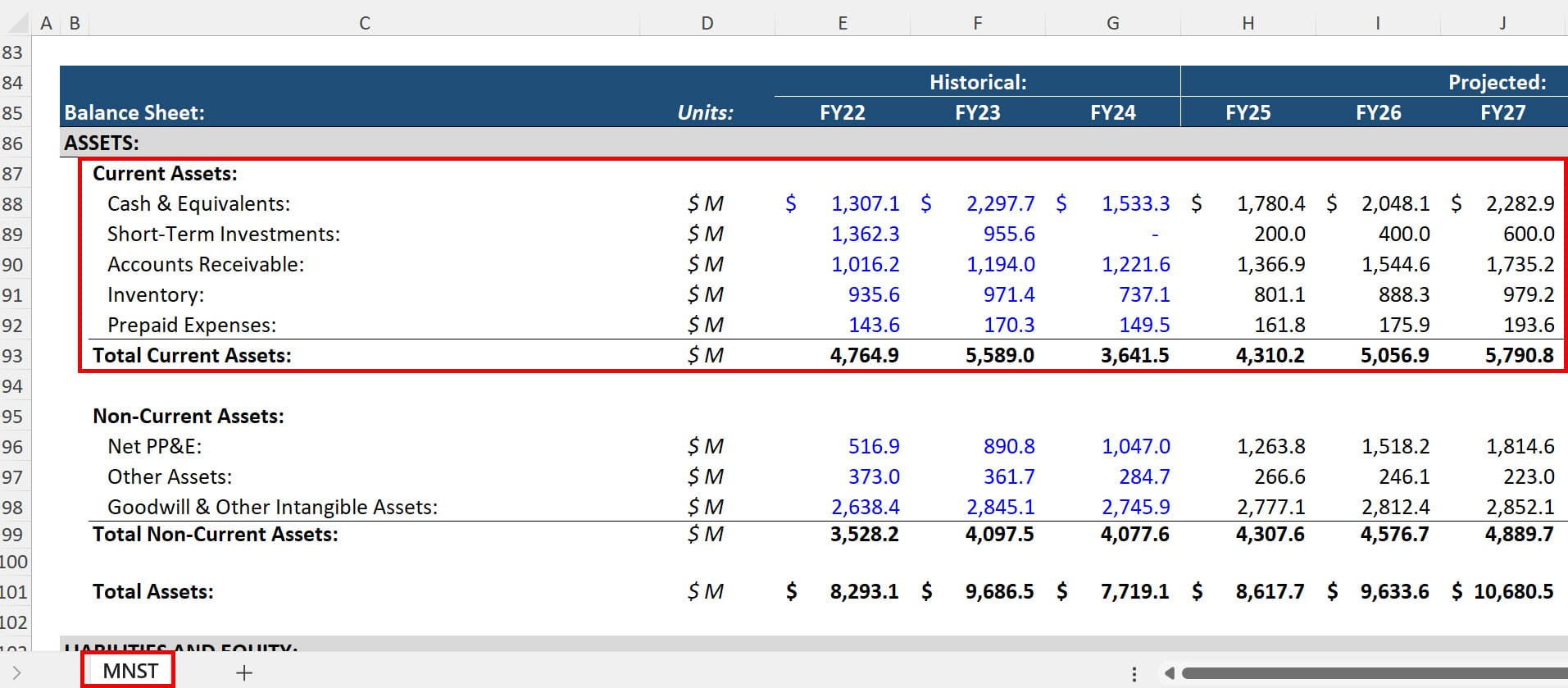

-
Become a financial modeling pro
158 videos, detailed written guides, Excel files, quizzes, and more
-
Complete 10+ detailed global case studies
These include both the theory and the practical applications
-
Prepare for your internship or full-time job
Gain the skills you need to “hit the ground running” on Day 1
Here’s why each commandment is important and how to implement them in models:
Financial Modeling Best Practice #1: ALWAYS List the Income Statement, Balance Sheet, and Cash Flow Statement on the Same Tab
It is FAR easier to build, modify, and “debug” (fix) 3-statement models when they’re set up like this.
When you use the Ctrl + [ or Ctrl + ] shortcut keys to jump to precedents and dependents, it’s very easy when the statements are all on one tab: You simply jump up or down to the formulas or numbers that flow in or out.
If each statement is on a separate tab, you’ll be jumping around between sheets, and it’s much harder to trace the flow of formulas.
Some people claim that putting the statements on separate tabs makes models more “organized.”
These people have no real-world experience with maintaining, fixing, and updating financial models and should not be taken seriously.
The ONLY case where it’s appropriate to split up the statements is if a company or case study provider sends you a model structured like this and specifically requests that you follow their format.
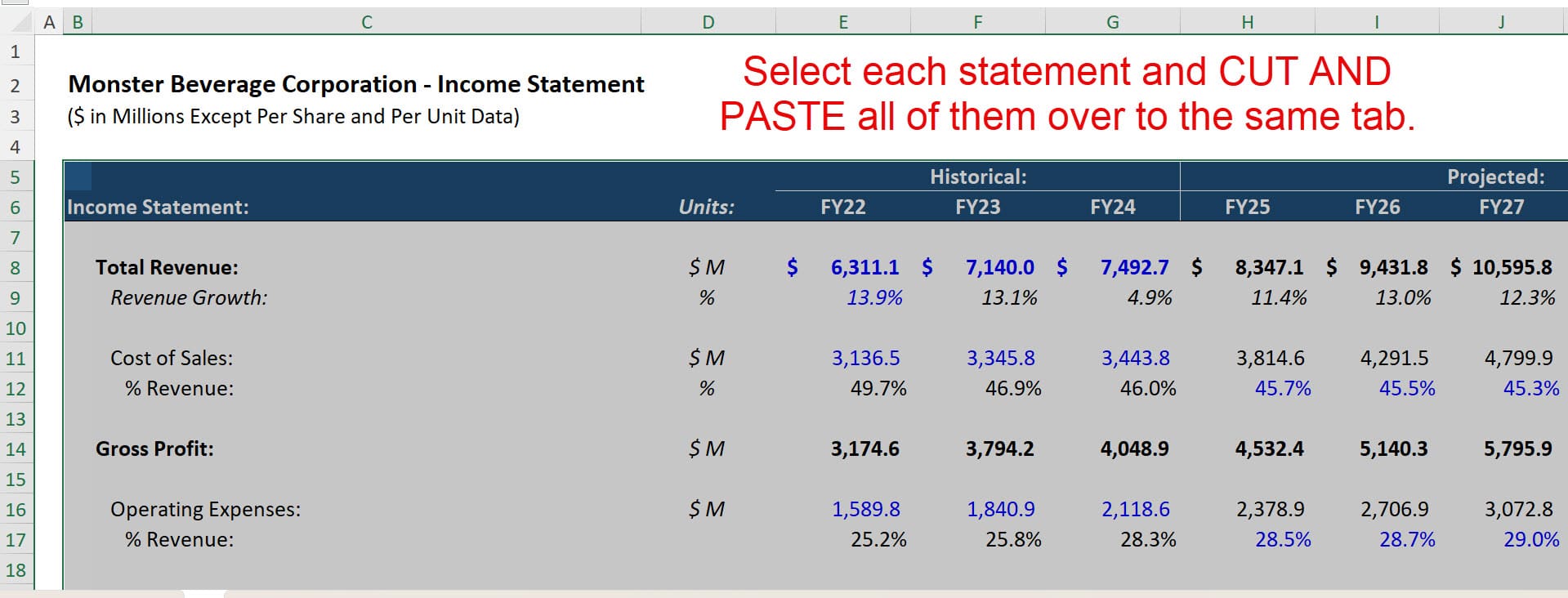
If you get a model that is split up like this, you should cut and paste each statement to the same tab, check the links, and do a find-and-replace to fix unnecessary spreadsheet name references:
Final Note: Separate tabs or worksheets in financial models are fine for certain purposes, such as supporting schedules or separate analyses (e.g., the WACC calculation in a DCF).
For models above a certain complexity, you will need separate tabs at some point.
However, the 3 financial statements for a single company should always be on a single tab, even in more complex models.
Financial Modeling Best Practice #2: Do NOT Mix Assumptions with Historical and Projected Numbers; Keep the Drivers in a Separate Area
This one should be “common sense” to most people, but in a surprising number of financial models, the historical and projected numbers (the outputs) are mixed with the drivers (the inputs).
For example, people sometimes list an assumption such as “Deferred Revenue % Revenue” right under Deferred Revenue on the Balance Sheet and use it to drive the Deferred Revenue.
This is poor practice because it makes models difficult to audit and makes the summation formulas error-prone:

All the drivers and assumptions should be in a separate area, ideally at the top of the model.
There are a few possible exceptions to this rule.
For example, if you are setting a line item to $0 or 0% in the projected period, or you’re holding it constant, it might be acceptable to include the assumption in line with the forecasts (but this should be done sparingly).
Financial Modeling Best Practice #3: Simplify and Consolidate the Historical Financial Statements; Aim for 5 – 10 Line Items on Each Side of the Balance Sheet
This commandment is important because many line items are small and do not matter.
Also, having too many line items on the statements makes it harder to link, check, and modify the projections.
If the Assets side of the company’s Balance Sheet has 4 line items representing 90% of Total Assets and 6 items representing the remaining 10%, focus on those 4 important line items!
Consolidate the rest, put them in an “Other” category, and move on to more important things.
Here’s a good example of an area that could be greatly consolidated (from the “Before” version of the Monster model):
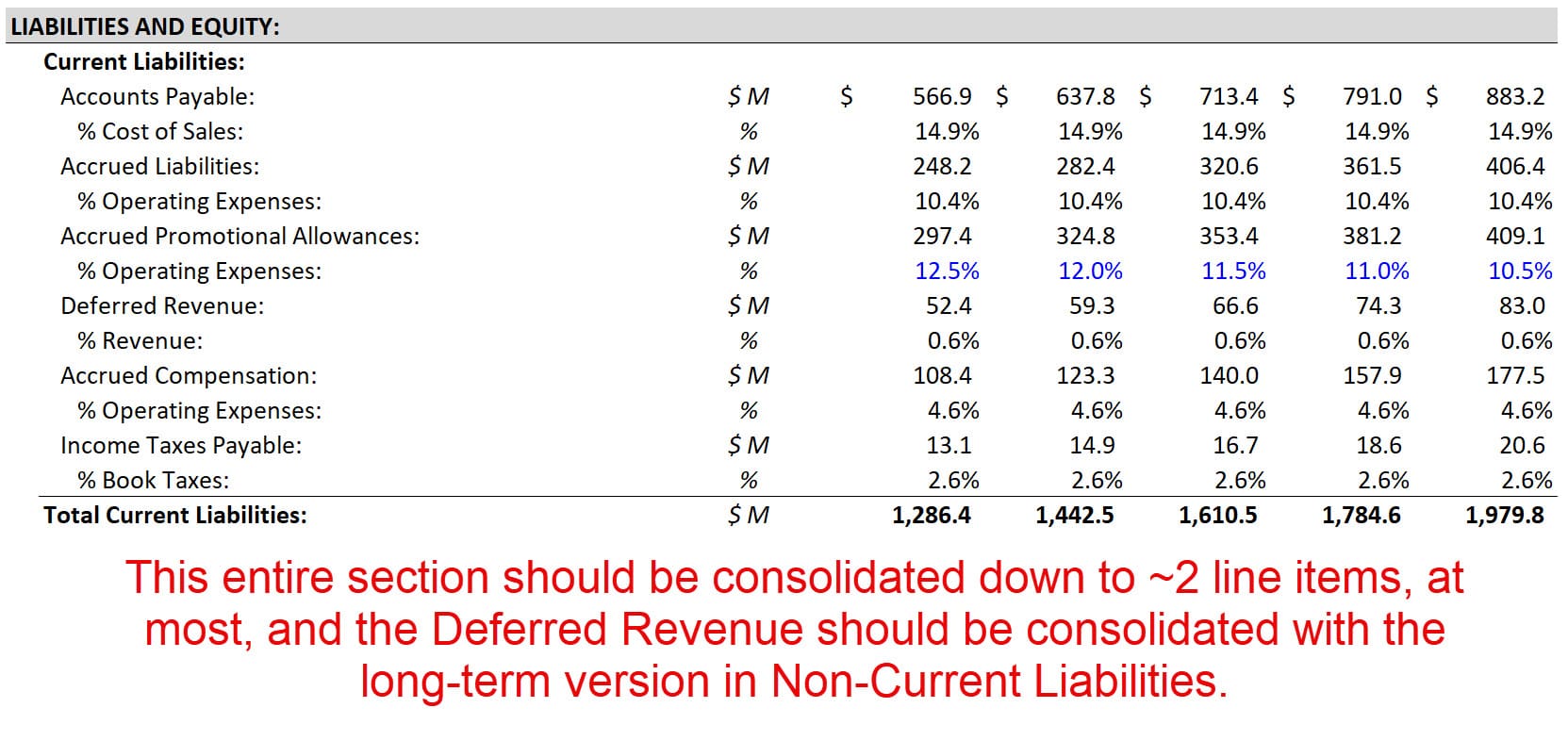
Specific recommendations include:
- Consolidate the short-term and long-term versions of items such as Debt, Deferred Revenue, and Investments.
- Do NOT show the individual components of Common Shareholders’ Equity (CSE) separately; group them together and only record CSE. If applicable, Preferred Stock and Noncontrolling Interests should still be separate within the Equity section.
- Use similar-sounding names to group items; for example, anything starting with “Prepaid” and anything starting with “Accrued” may be grouped.
When you simplify and consolidate the Balance Sheet, you should do the same for the Cash Flow Statement and make sure there’s a corresponding line for each Balance Sheet line.
It’s not always a 1:1 correspondence because in some cases, multiple line items on one statement might correspond to a single line on the other.
But there must always be at least one correspondence on the other statement.
Financial Modeling Best Practices: Smaller, Shorter Commandments
Besides the big points above, there are also many “smaller commandments.”
These represent items that are simpler to fix than the issues above or that are less serious problems in models, or both:
Color Code Financial Models Properly
We follow the most common standards for color coding:
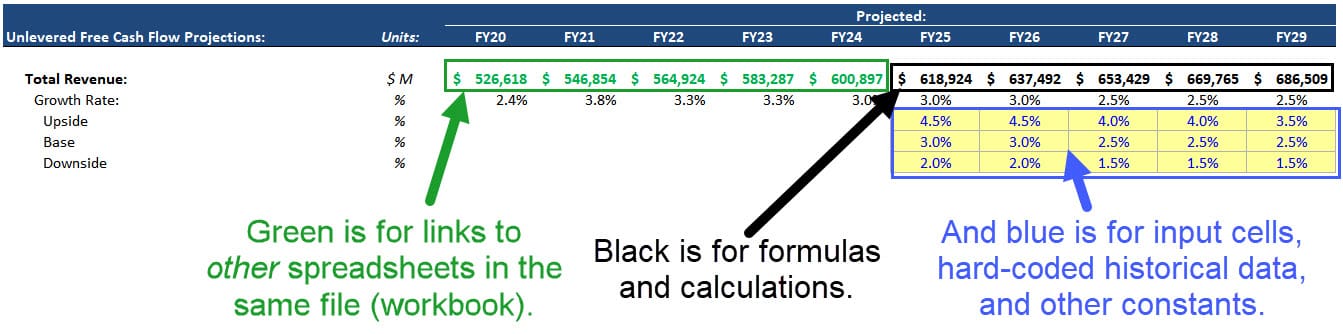
There’s also a full tutorial on how to automate the process here.
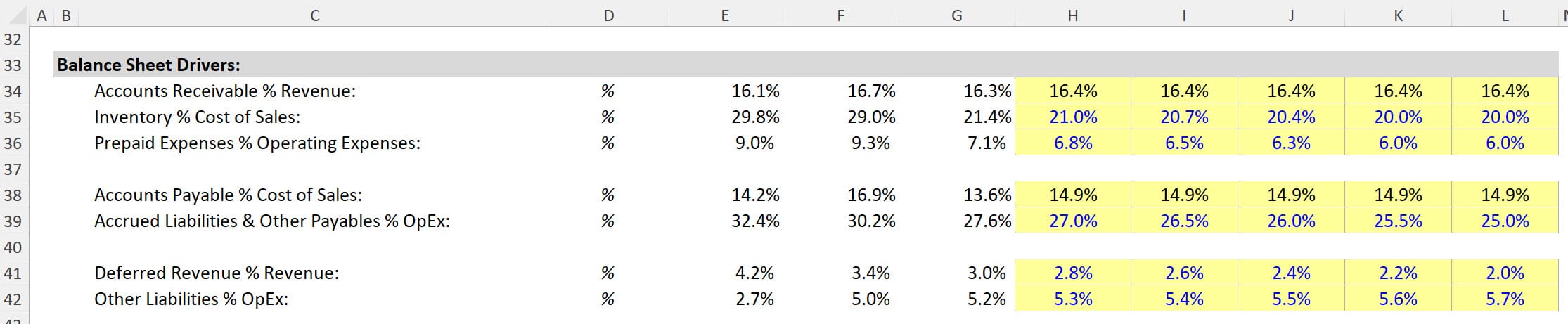
In this Monster Beverage model, the original color coding isn’t terrible, but none of the “input boxes” have yellow backgrounds, which makes them hard to distinguish.
So, the corrected version changes this to make our assumptions and inputs clearer:
Use Proper Sign Conventions on All the Statements
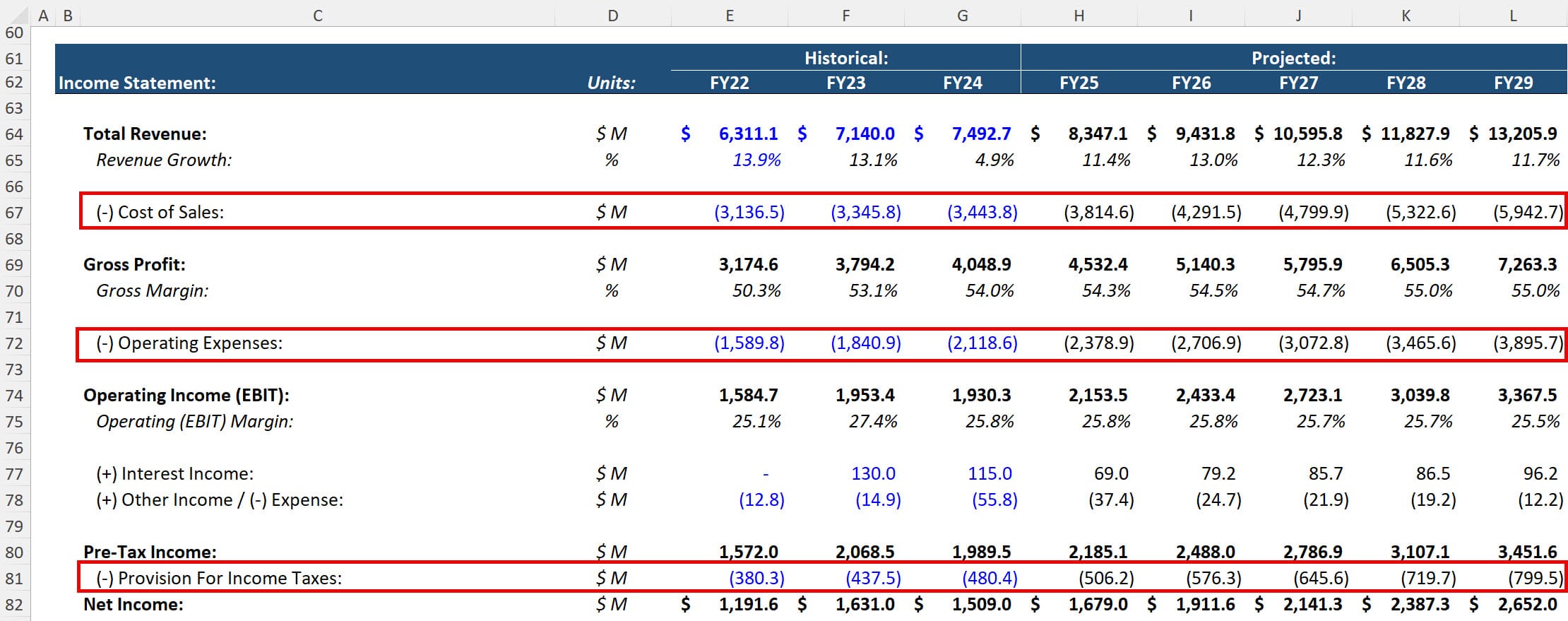
Another issue with the original Monster Model is that many expenses on the Income Statement have positive signs.
This makes summation formulas error-prone because we need to “remember” to subtract items rather than simply adding everything.
The fixed version corrects this and uses negatives for all expenses and cash outflows:
Hard-Code Only the Historical Numbers, Not Projections
You should hard-code all the historical numbers, ideally after linking them in from the company-provided financial statements in Excel.
However, you should not “hard-code” the projections directly on the financial statements.
Even if you want to set a certain item to 0 all the way across, it’s much better to do this at the top of the model in the assumptions area and then link to it on the statements.
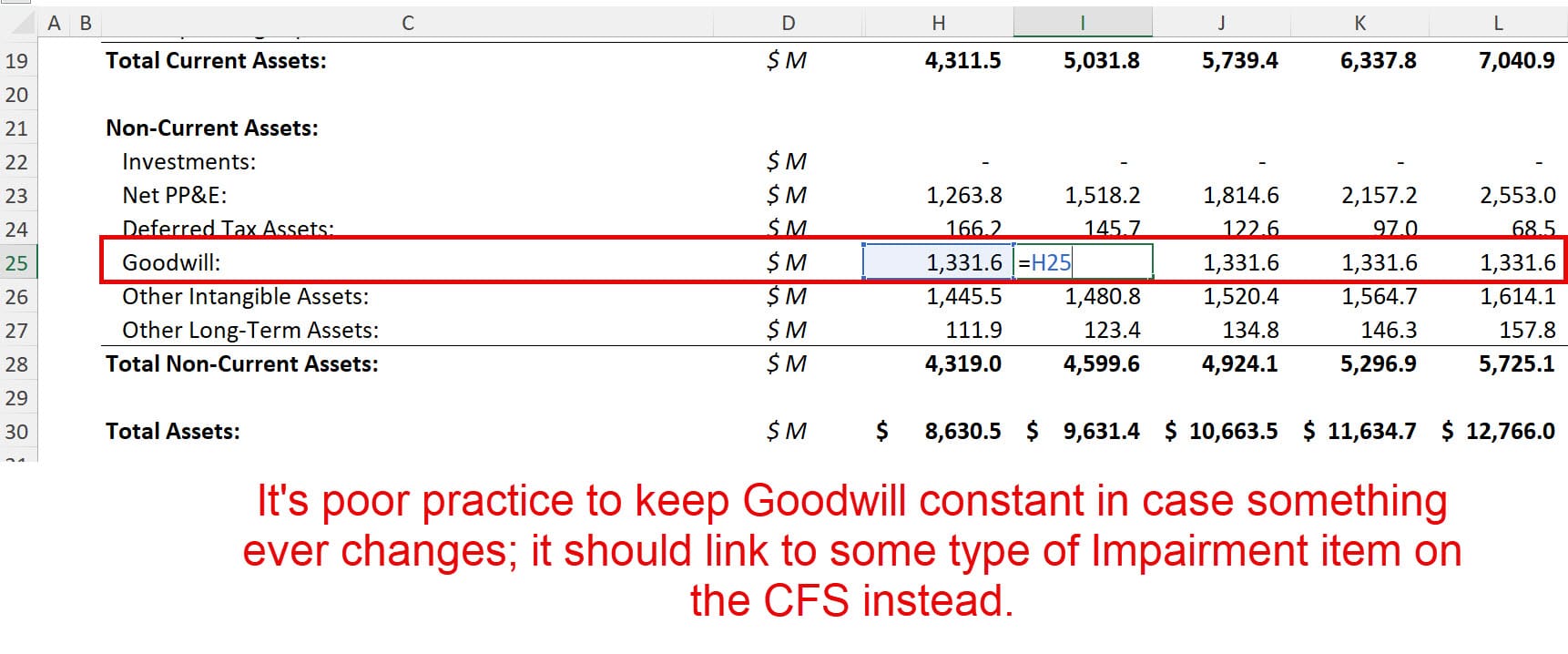
Similarly, it’s also poor practice to simply “link” to the historical line items and keep them constant without referencing a supporting schedule or the other statement.
If something in the model ever changes, the Balance Sheet could go out of balance if you do this.
Here’s an example of this poor practice in the original Monster model:
Master Financial Modeling for Investment Banking With BIWS Core Financial Modeling
-
Become a financial modeling pro
158 videos, detailed written guides, Excel files, quizzes, and more
-
Complete 10+ detailed global case studies
These include both the theory and the practical applications
-
Prepare for your internship or full-time job
Gain the skills you need to “hit the ground running” on Day 1
The Cash Flow Statement Should Always Start with Net Income
Many IFRS-based companies use Cash Flow Statements that start with metrics other than Net Income, such as Operating Income or Pre-Tax Income.
Also, some companies use the “Direct Method” for the CFS, which shows the cash inflows and outflows rather than starting with an IS metric and adjusting it.
For modeling purposes, the CFS should always start with Net Income, and you should find a reconciliation in the company’s financials that allows you to set up the model this way.
This process is a bit involved, so it’s beyond the scope of this article, but we cover the topic in our courses.
Avoid Hidden Sheets, Rows, and Columns
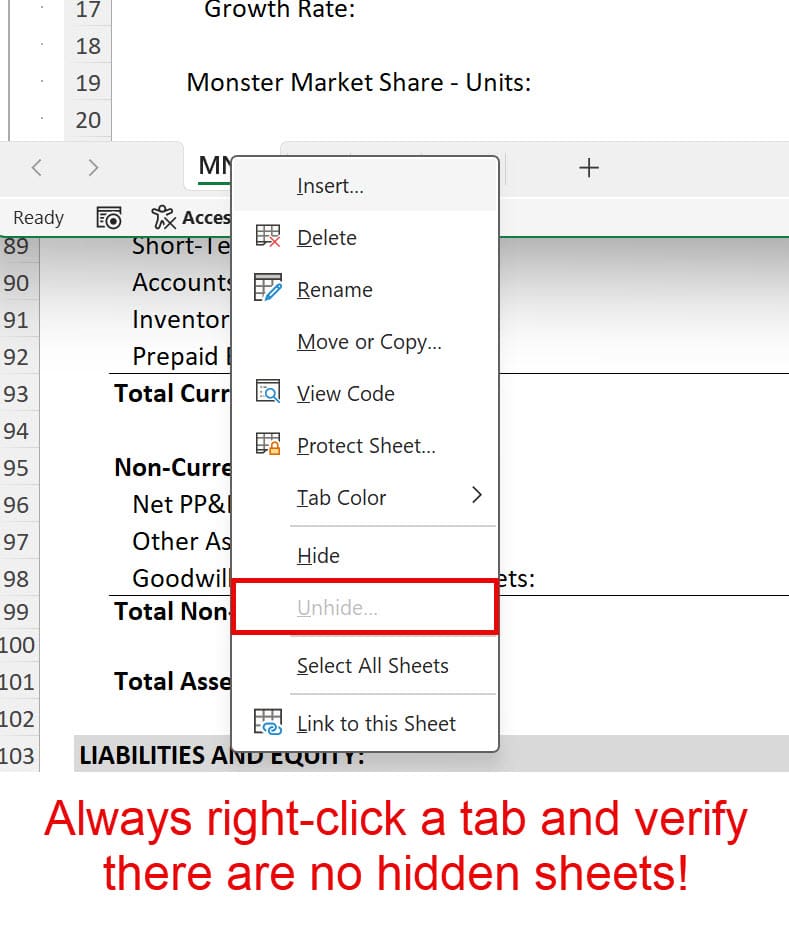
“Hiding” sheets, rows, or columns in an Excel file is a terrible idea because it’s easy to miss these and accidentally disclose confidential data to 3rd parties.
In fact, the first thing you should do when preparing to send any Excel file is to right-click a tab and go to “Unhide” to make sure there are no hidden sheets:
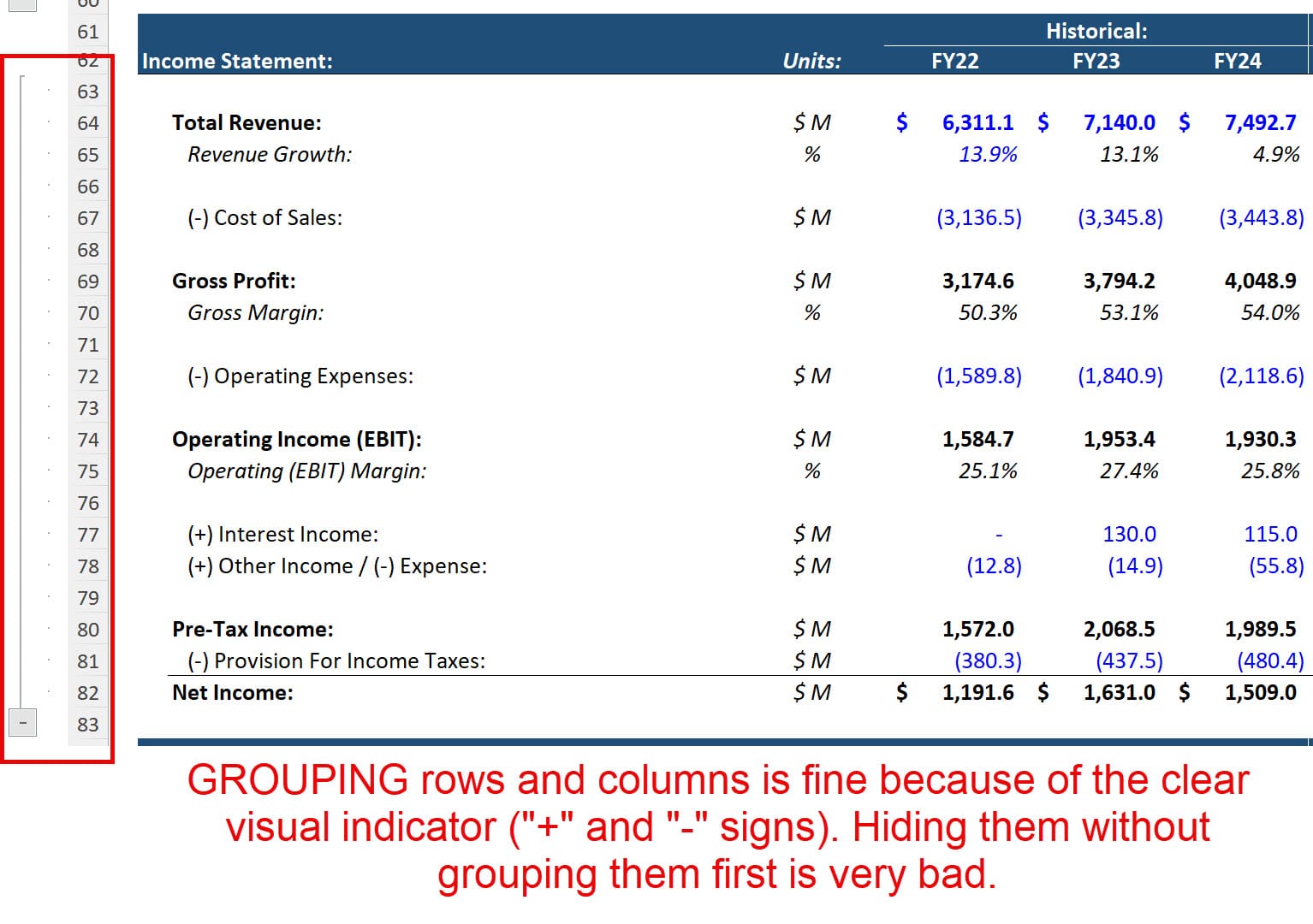
Grouping rows and columns presents similar but less serious issues; the best approach here is to group them so you can click a button to hide and reveal them as needed.
The key difference is that when you group them rather than hide them, there’s a clear visual indicator, which reduces the chances of errors:
Do Not Include Hard-Coded Numbers in Formulas or Cell References
When you’re entering a formula, it should reference other cells and built-in Excel functions, but it should NOT use hard-coded numbers, such as 300, 112, or 7.
There are a few potential exceptions here for numbers like 1, -1, 0, and 12 for the “Months in the Year” (since it never changes), but even these should be used sparingly.
Do Not Link to Multiple Sheets in a Single Formula and Do Not Link to External Files
Linking to multiple other sheets makes it extremely difficult to audit models and change their setup and layout.
If you do this repeatedly, you need to set up the model differently or combine more schedules so that each sheet contains a larger portion of the model.
Linking to external files is even worse because models will break when these files’ locations, formats, or data change.
If you must do this, copy the file to a separate tab directly within your Excel file and reference it like that.
If the data needs to be updated, use Power Query or related tools in Excel to do so automatically.
Used Named Cells and Ranges Sparingly
Named cells are appropriate for assumptions that will be used throughout a model and will stay the same in each period, such as the company’s name, the current date, the tax rate, etc.
Named ranges can also be useful for data retrieval with INDEX/MATCH or XLOOKUP.
But you don’t want to have a file with 200 named cells.
Use named cells and ranges sparingly and only in cases where you’ll repeatedly reference a single number or area in a model.
Use MIN/MAX Rather Than “If” Where Possible
Functions written with “IF” are sometimes easier to understand, but MIN/MAX lets you write them more efficiently and test for conditions more robustly.
A perfect example is the standard Revolver formula in an LBO or credit model:
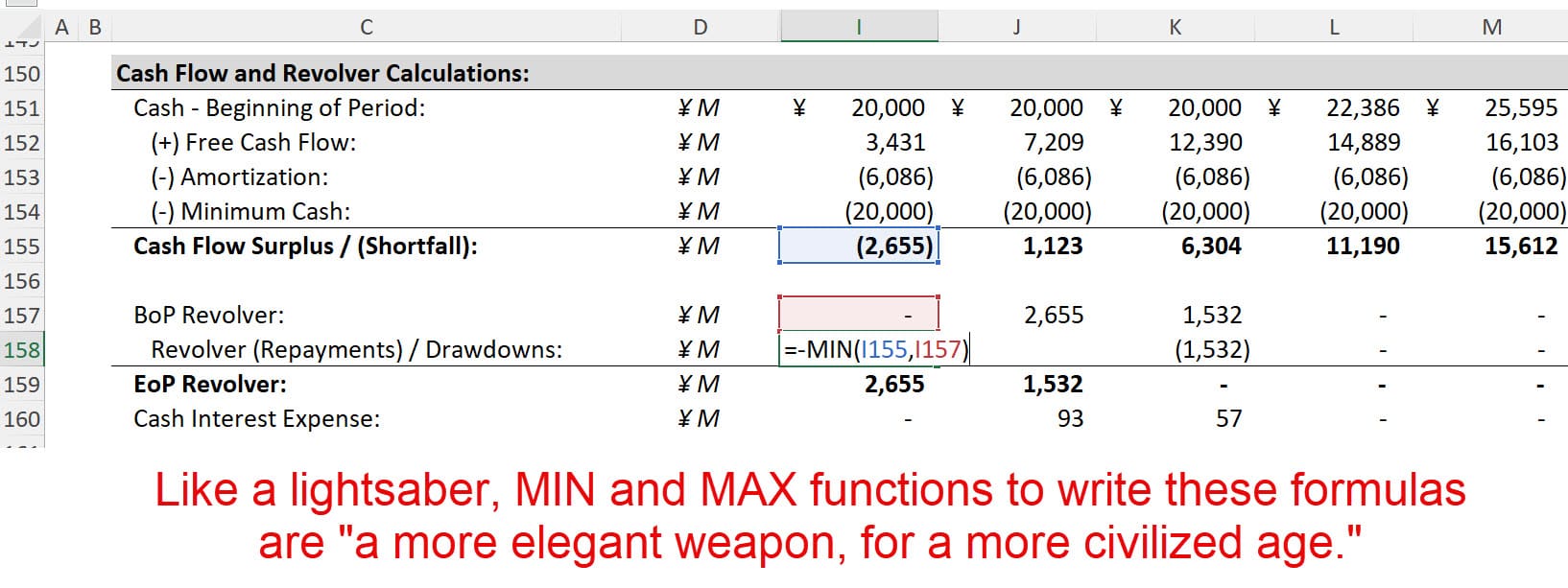
We could write this with an IF statement instead, but it’s more like a blaster than a lightsaber this way:

It’s not “wrong” because it still works, but it’s a better style to use MIN/MAX for a shorter formula.
Use Custom Number Formats Sparingly
Custom number formats, which let you format numbers like “valuation multiples” or in abbreviated ways, can be very useful:
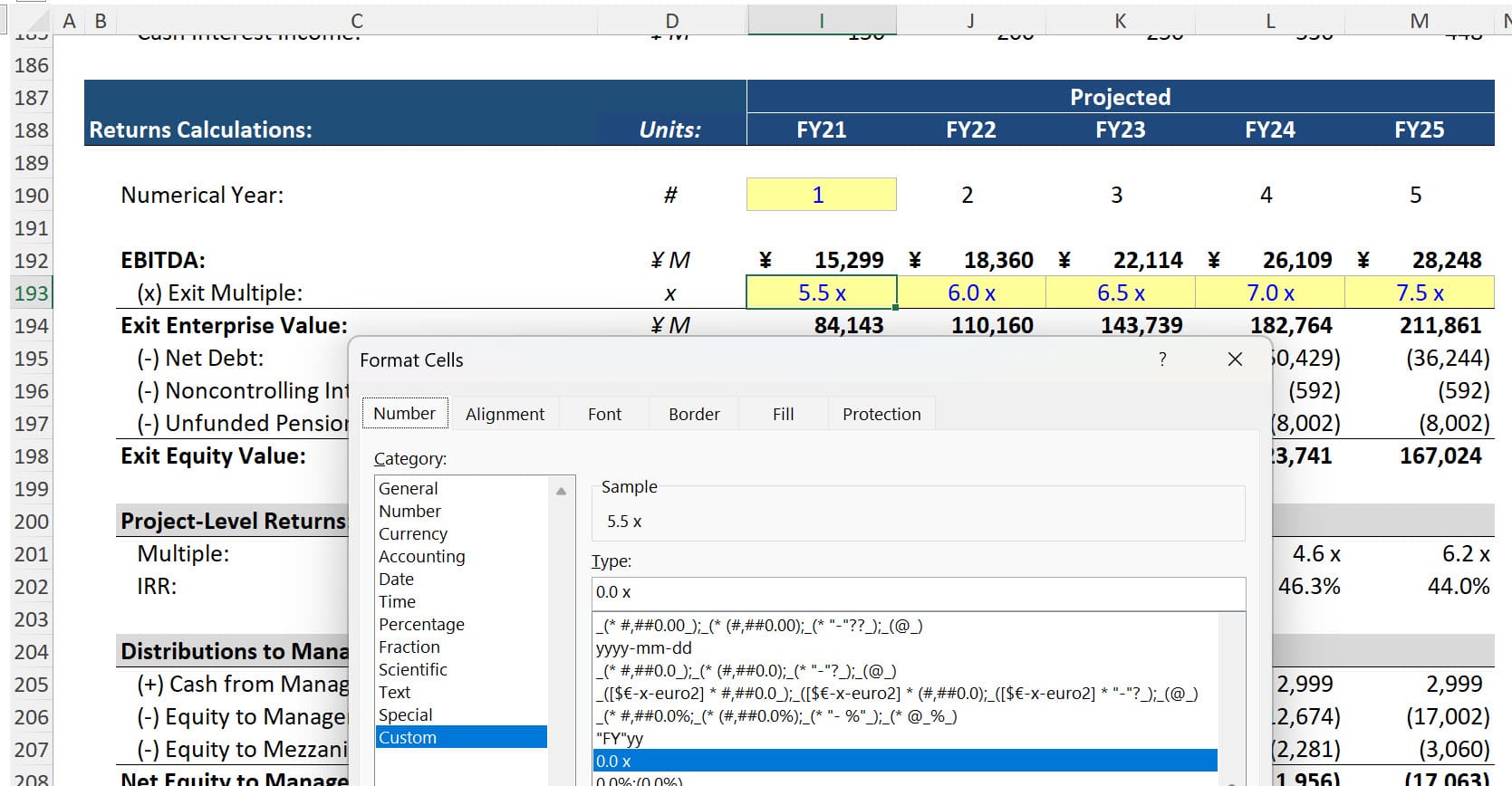
You can set them up by going to Ctrl + 1 in Excel, Number, Category, and Custom.
But you should not go overboard with them.
Adding a few custom formats to your file is fine, but if you start adding dozens, the file could easily “break,” and you might lose much of your formatting.
Use Circular References Sparingly and Always Allow Them to Be Disabled
We discuss circular references in another article, but they arise when a cell’s input depends on its output.
For example, the Interest Expense, when calculated based on the average Debt balance, depends on the Beginning and Ending Debt in a period.
But the Ending Debt changes based on this Interest Expense!
A higher Interest Expense means that the company will repay less Debt because its cash flows are lower (and vice versa for a lower Interest Expense).
So, the Interest Expense depends on the Ending Debt, but the Ending Debt also depends on the Interest Expense.
This circular reference is easy to resolve: Build in the option to calculate interest based on the beginning balance OR the average balance.
You should always include the option to disable circular calculations or use alternate methods to remove them, such as with VBA in Project Finance.
They can make models unstable and difficult to modify, so it’s poor practice to leave them in without any alternatives.
If you enjoyed this, you might like this article about financial modeling mistakes.

About Brian DeChesare
Brian DeChesare is the Founder of Mergers & Inquisitions and Breaking Into Wall Street. In his spare time, he enjoys lifting weights, running, traveling, obsessively watching TV shows, and defeating Sauron.

